Xiaomi Smart Home — Glanceable Control
Reimagined the device control experience for Xiaomi's smart home app — fewer taps, more glanceable status, and a visual language tuned for a lived-in home rather than a showroom.
Overview
November 22, 2020 in UI, UX
This project is to design a mobile phone user interface for Xiaomi Smart Home software. Xiaomi Smart Home is a complete set of closed‑loop experience composed of smart hardware products of Xiaomi Eco‑Chain Enterprise. The Xiaomi Smart Home APP is a unified device connection portal, deeply integrated into the MIUI system, and the lock screen interface integrates the device control center to simplify the operation process and facilitate users to quickly connect and use Xiaomi smart hardware devices with one click.
Branding Requirements
- Cozy feeling. This software focuses on smart homes. The purpose is to let users experience the warm feeling of home while they are using.
- User‑friendly. The software has a broad audience — both male and female; the youth and the aged; the tech‑newbie and the expert. So the software interface should be in explicit language and inclusive to all the target users.
- Follows the trend of design. Recent design trends are characterized by flatness and roundness.
- The use of colors should conform to the brand's positioning.
Wireframe Design
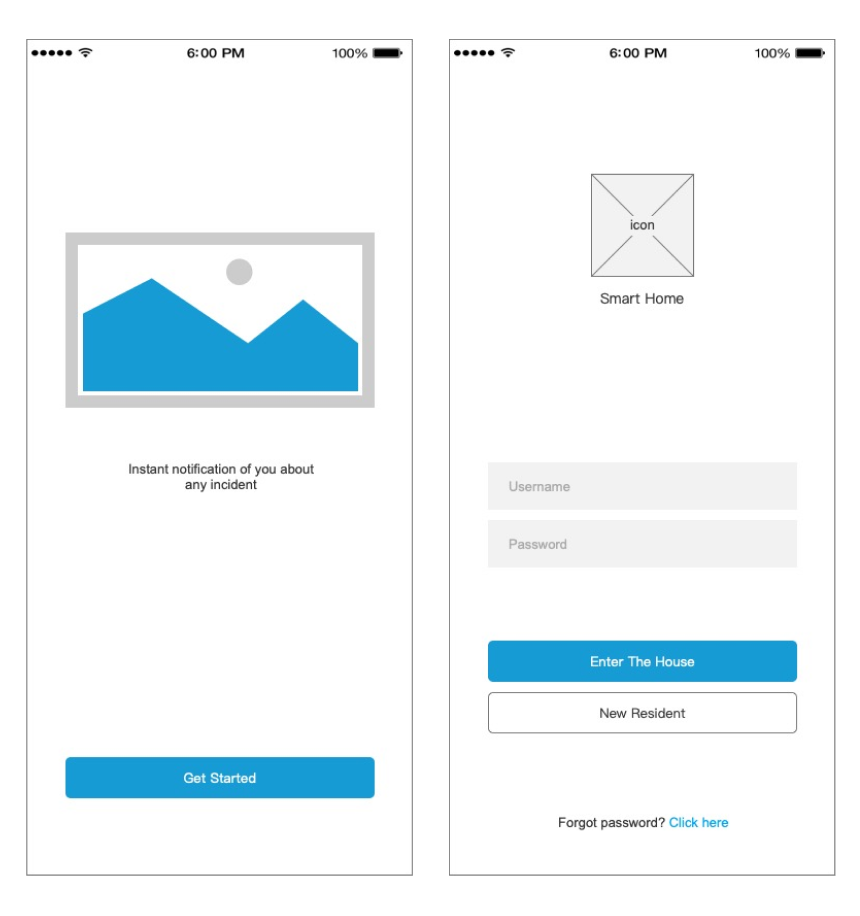
#1 Beginning Interface

These two interfaces are the interfaces displayed when the software launches. The one on the left is the buffer interface, and the picture in the middle will be placed with illustrations or advertising banners. On the right is the interface for the user to log in to the software.
#2 Home Interface

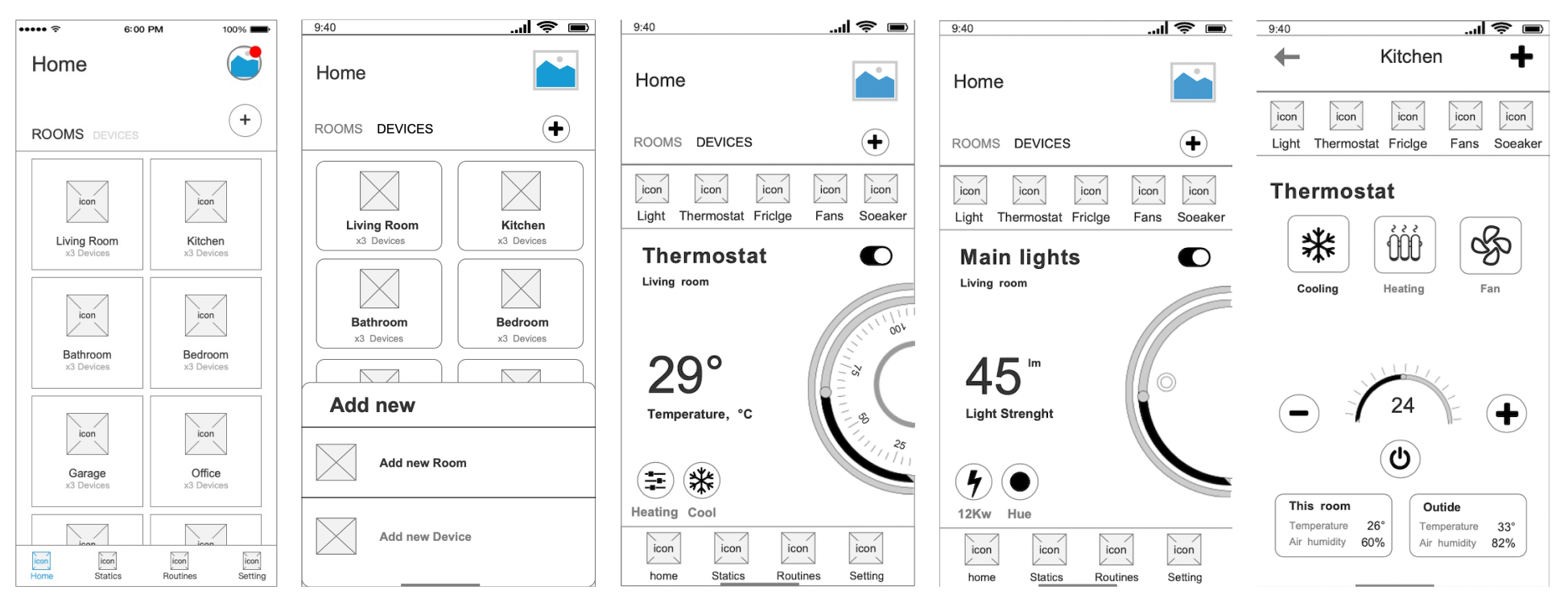
These five interfaces are the "Home" page.
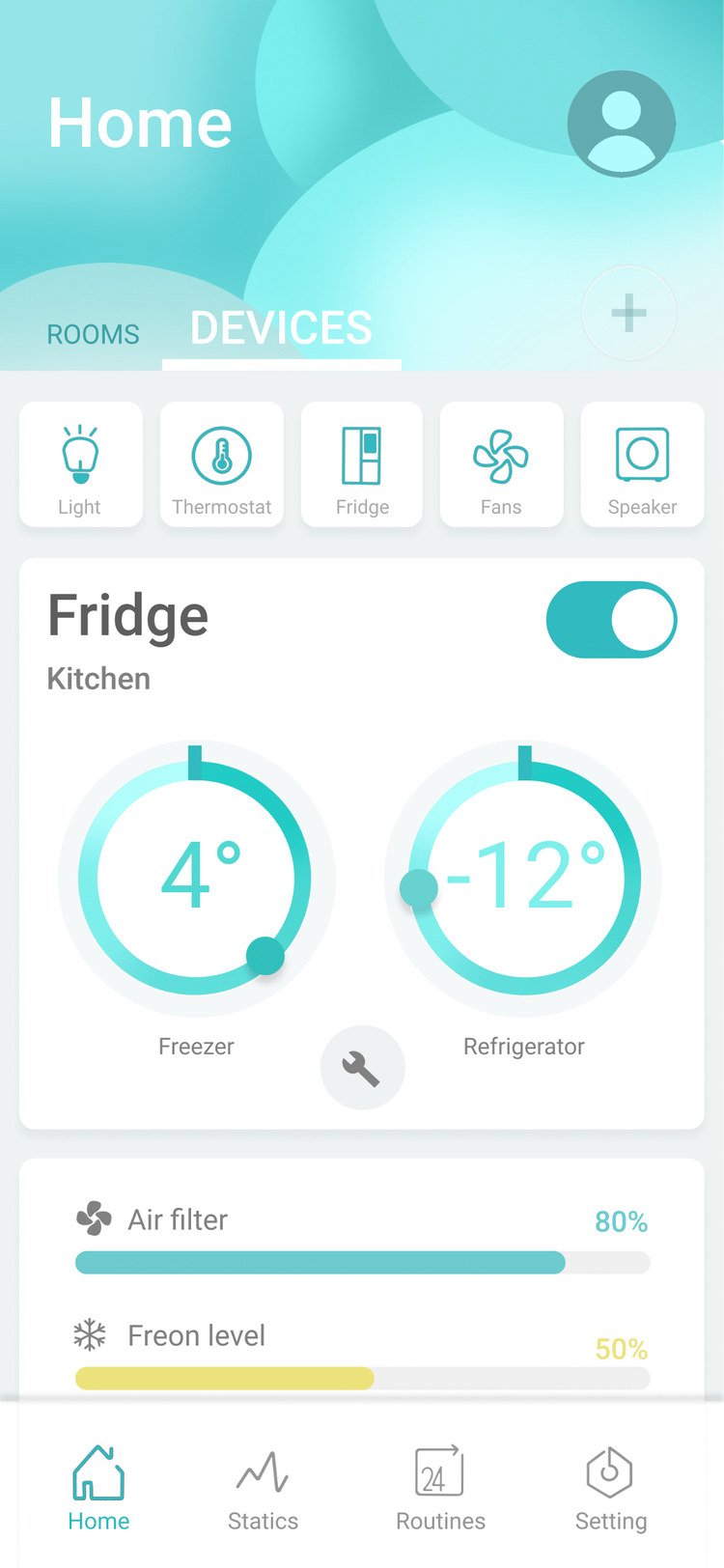
- Room display: Because this software aims to facilitate the use of smart homes, the room options are displayed when the software launches. Users can view the smart home appliances in each room by clicking on each thumbnail/card.
- Add button: Users can add a new room or new device by clicking the plus sign in the upper right corner.
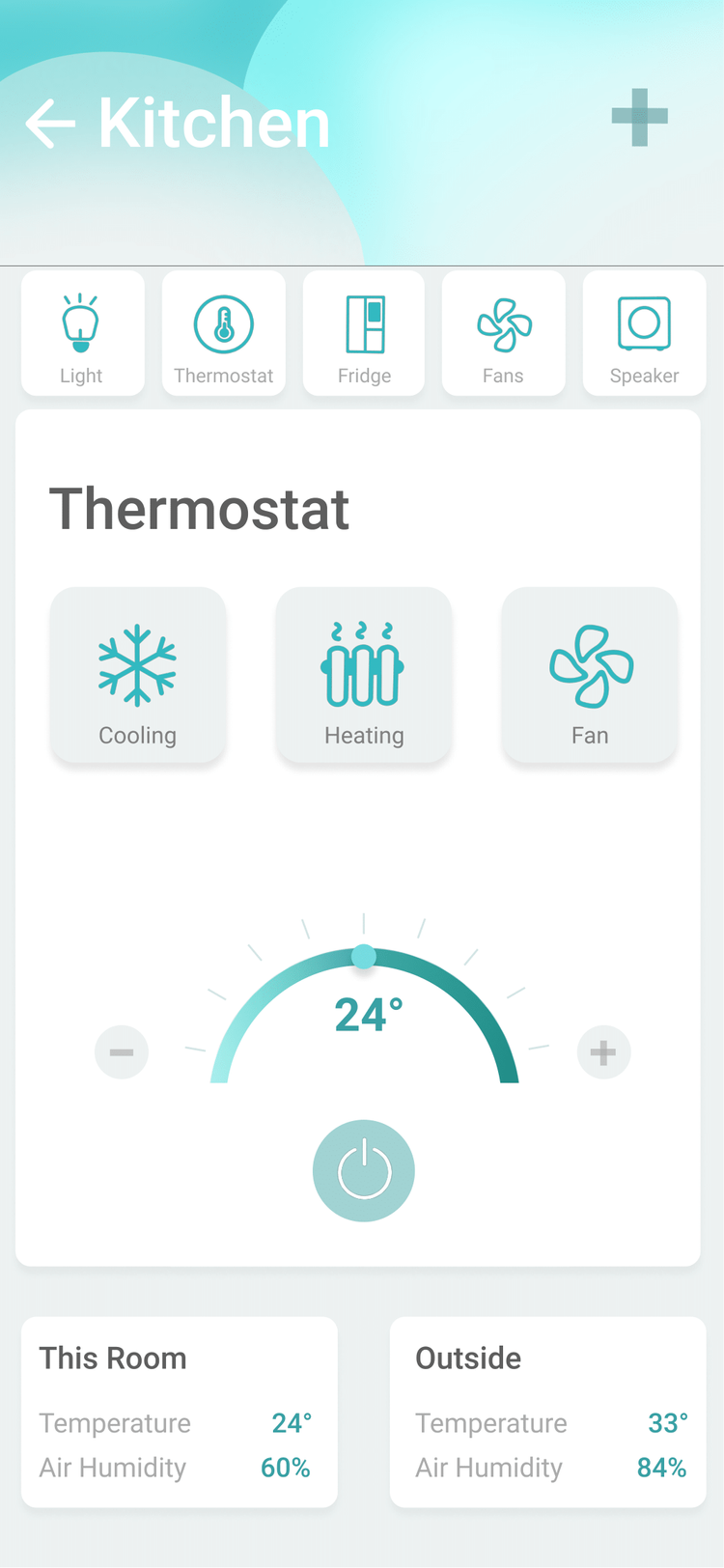
- Equipment display · thermostat: This display is the exclusive setting page of the thermostat. The user can control the temperature through the dial on the right. There are buttons to control cooling, heating, and settings in the lower-left corner.
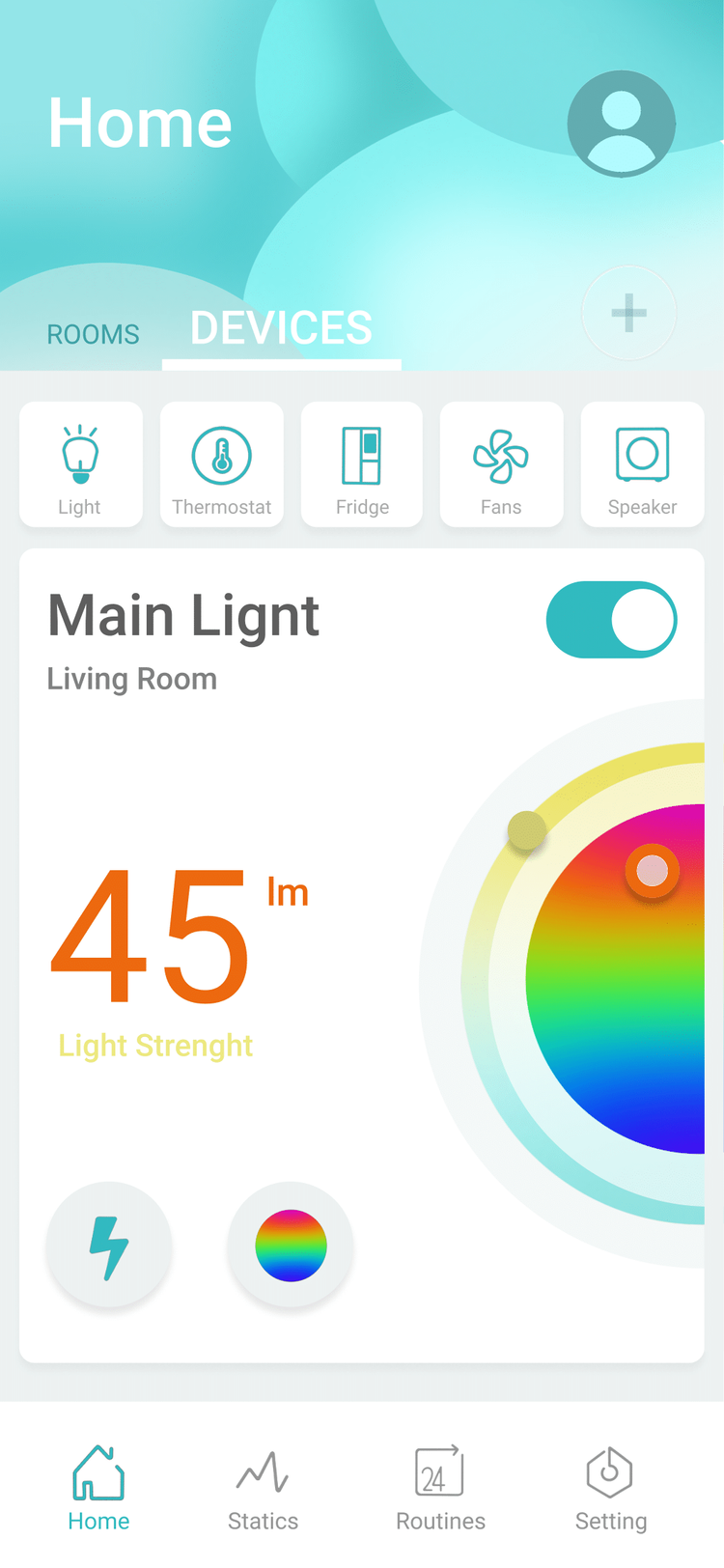
- Equipment display · main lights: This is the exclusive setting page of lights. The user can control the brightness of the light through the dial on the right. There are buttons on the lower-left corner to control the bulb's wattage and adjust the color of the light.
- Equipment display · thermostat setting: This shows the thermostat setting page. Users can control the cooling, heating and fan buttons through the upper part. There are plus and minus buttons on the left and right sides to control the temperature. Shown below are indoor temperature and humidity and outdoor temperature and humidity.
#3 Statics Interface
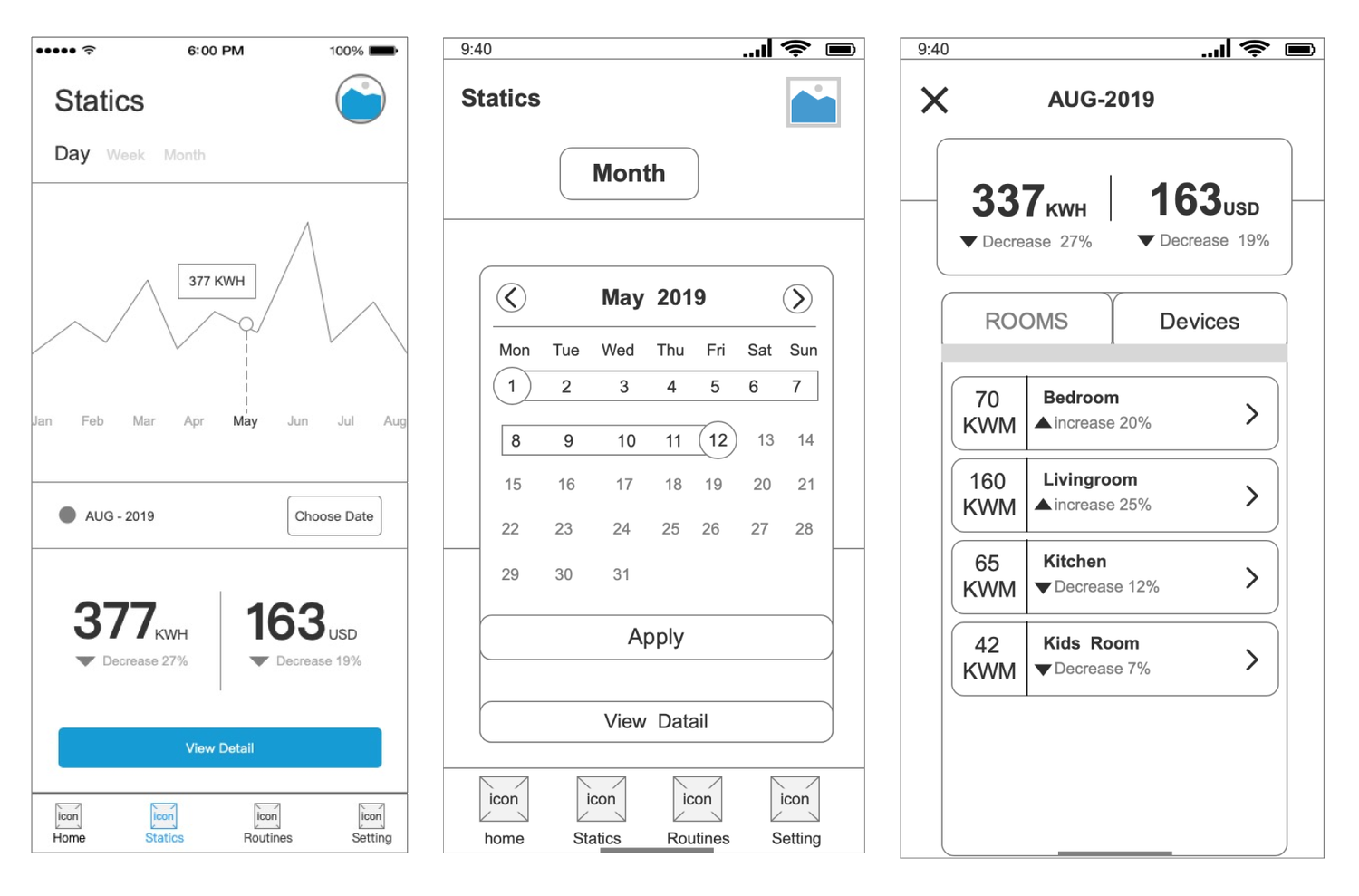
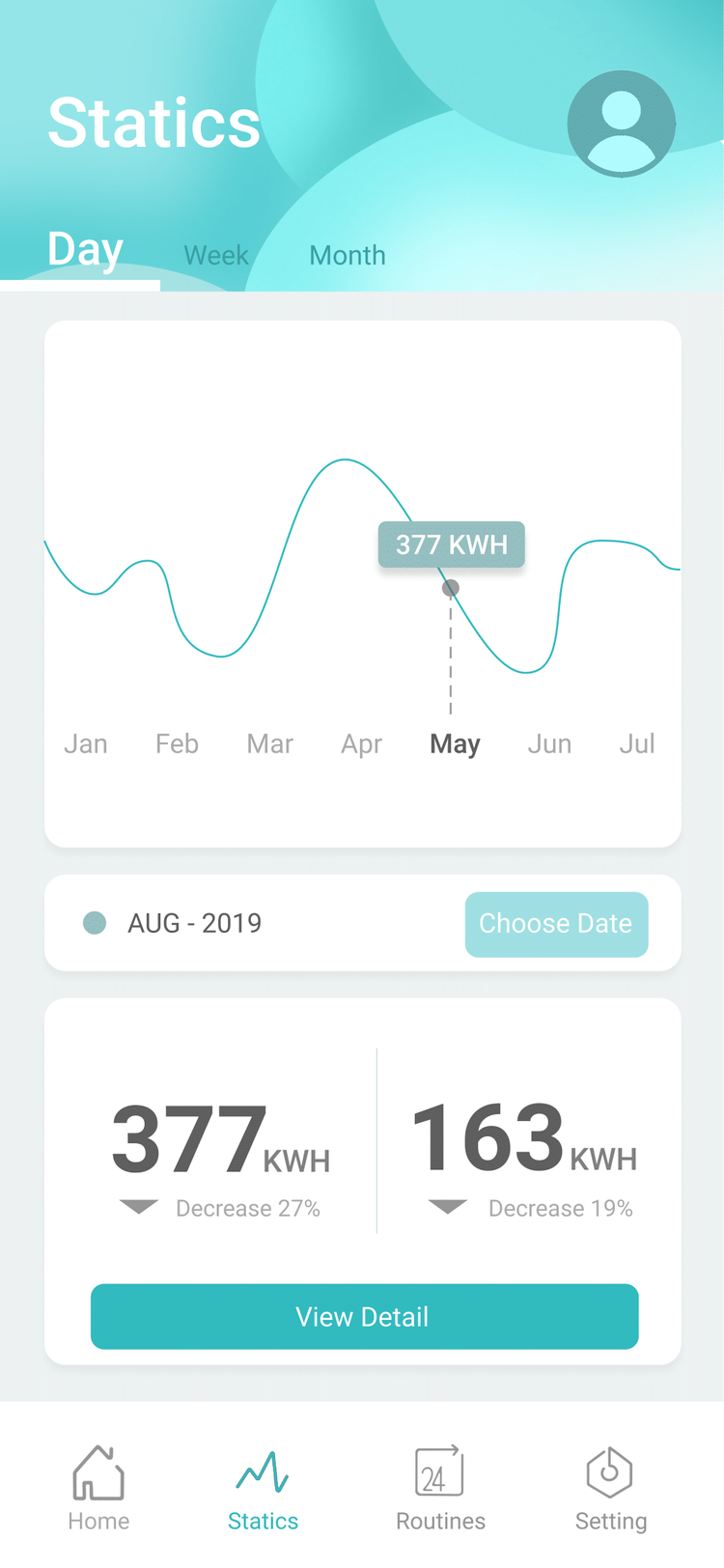
These three interfaces display the data of the room. The software will automatically record the data. Users can view past data records through the calendar. In the view detail interface, the user can see the specific data of each room and each device.

#4 Routines Interface
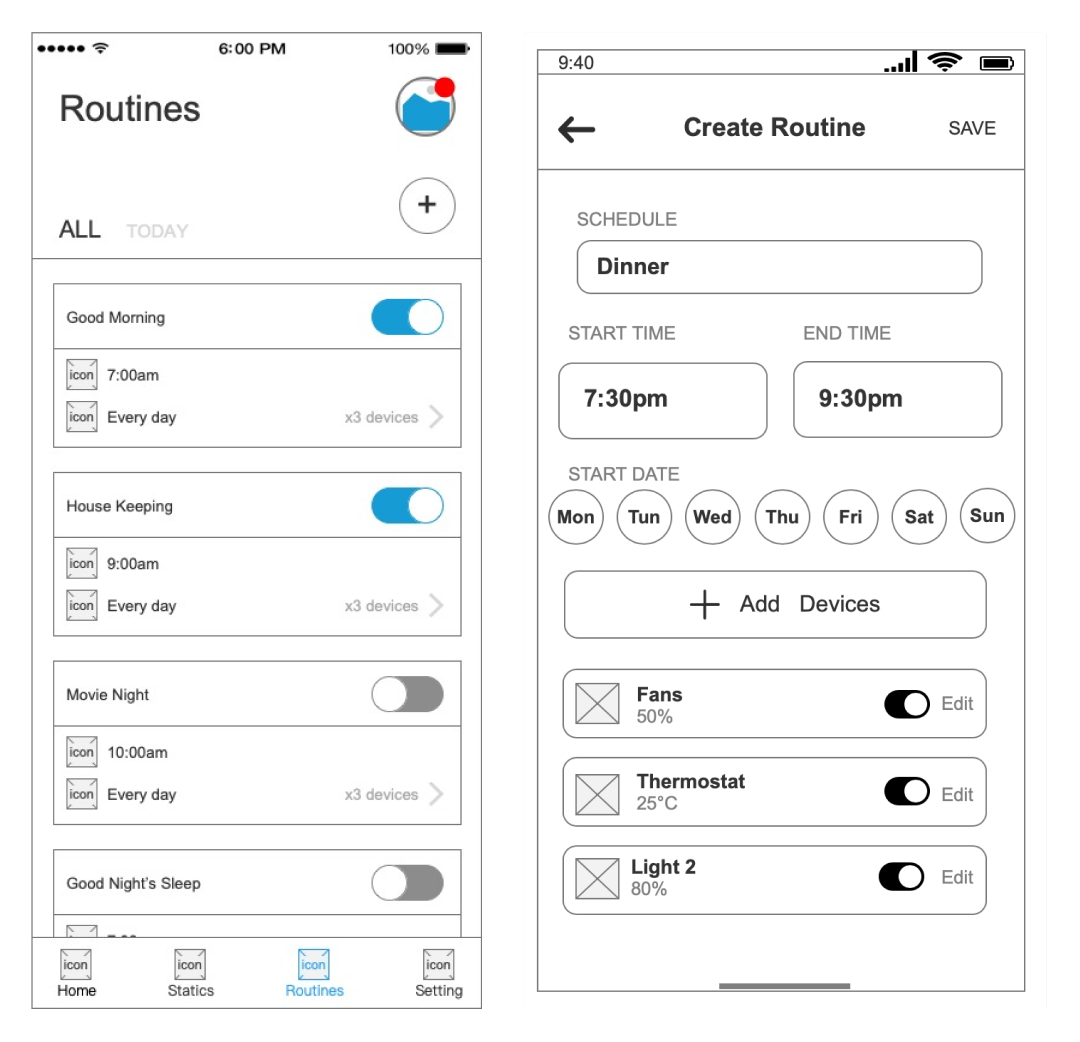
These two interfaces are for setting daily plans. Users can add a routine through the plus button in the upper right corner to let the smart home automatically start at regular intervals. On this main page, the user can choose whether to turn on the device through the toggle button.
#5 Setting Interface
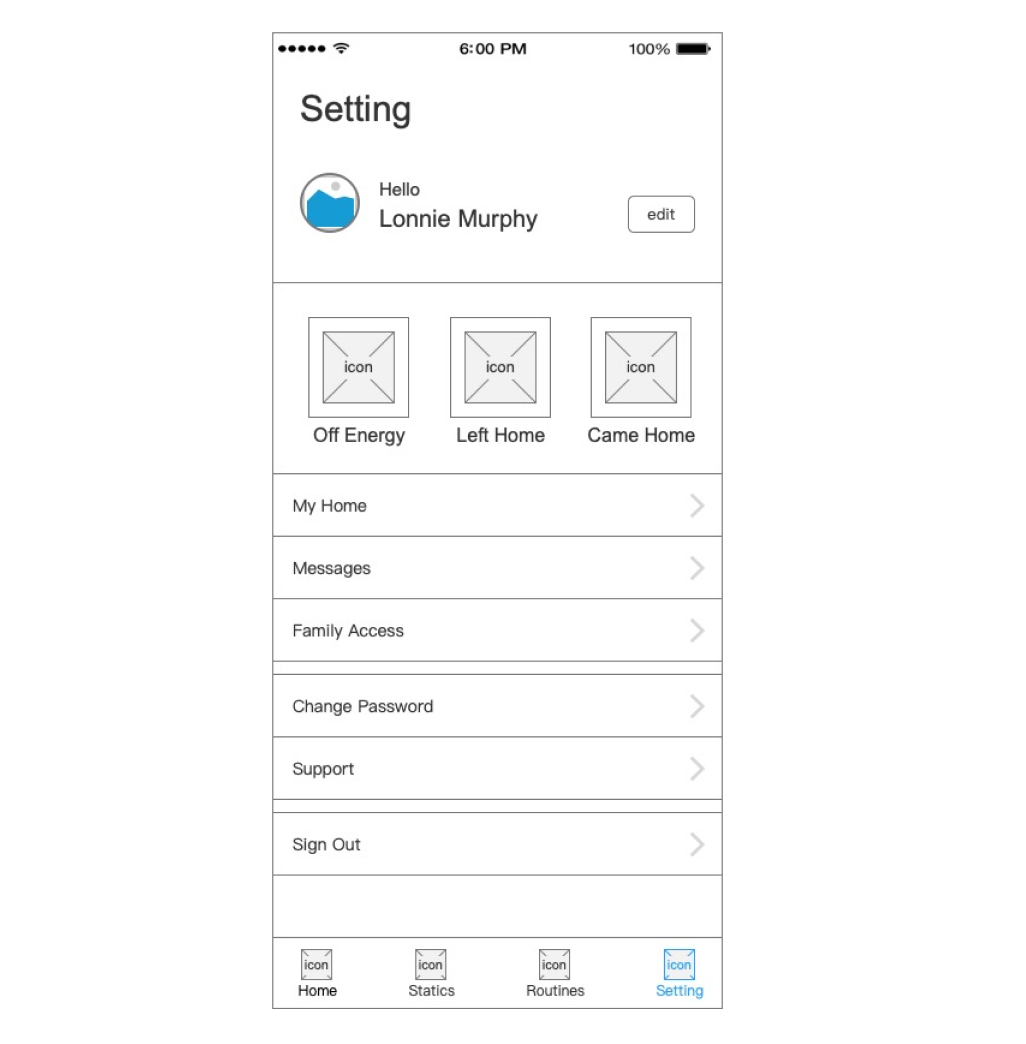
The user can set the software on this interface. The top one is the user's avatar and name. The user can set personal information on the edit button on the right. The middle column is the three most-commonly-used control buttons. Below are some less-frequently-used settings for the software.
Elements Design
Visual Design
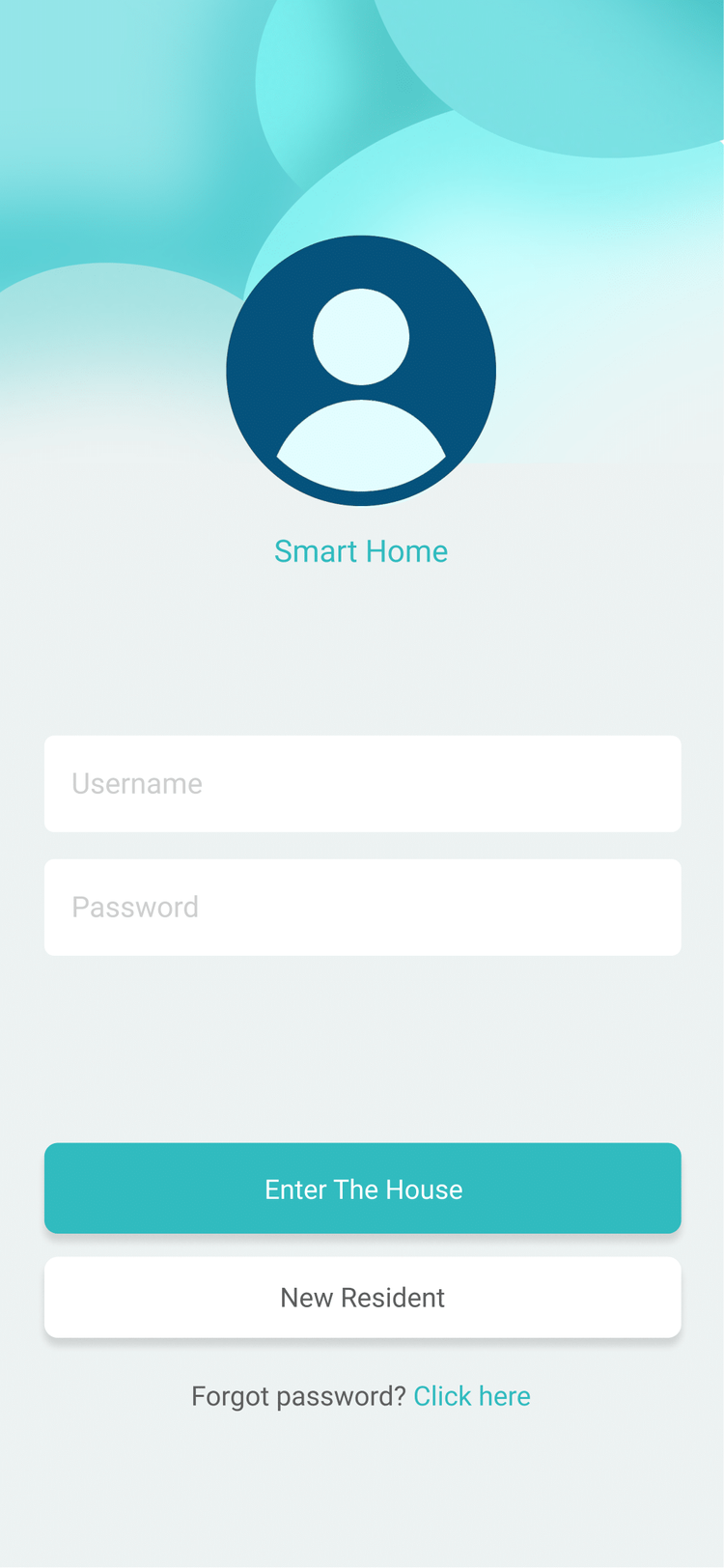
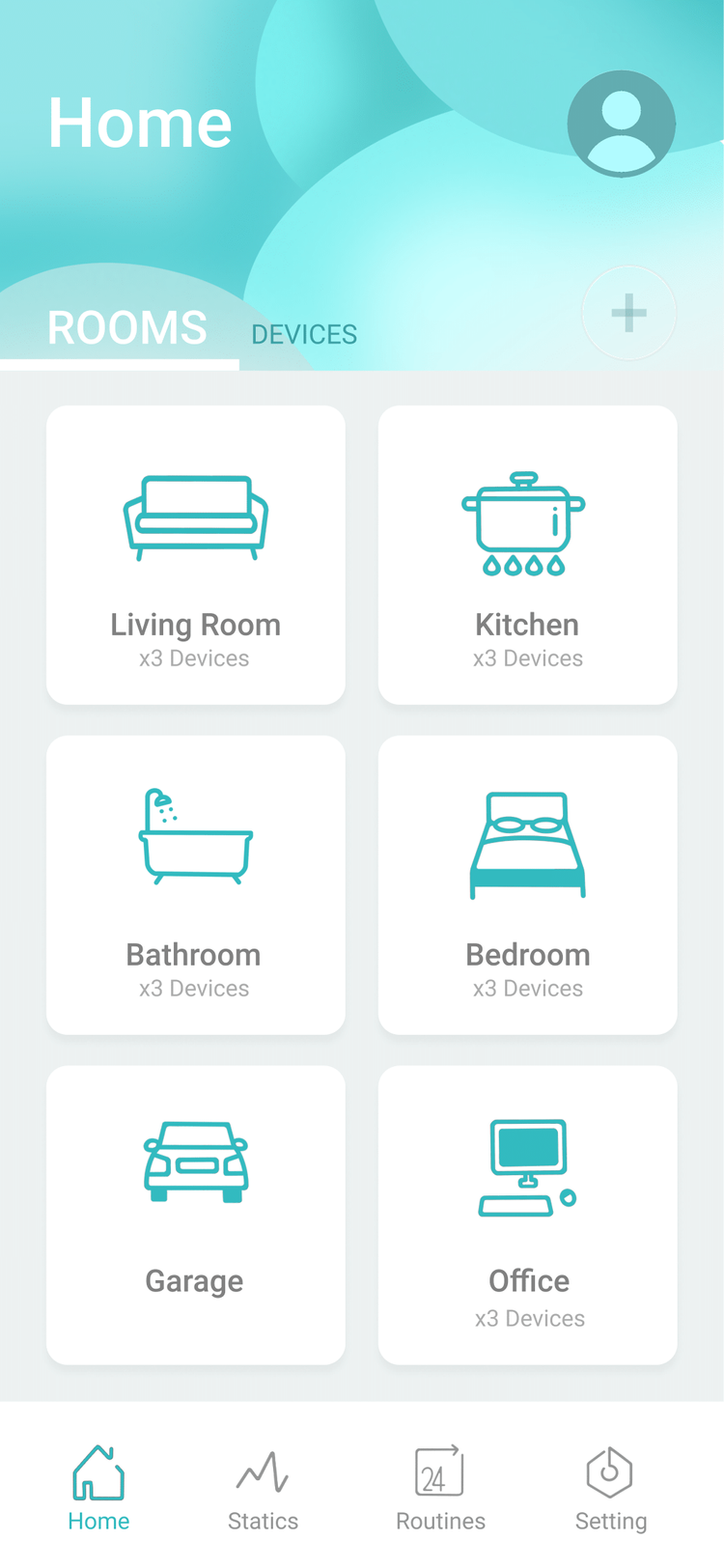
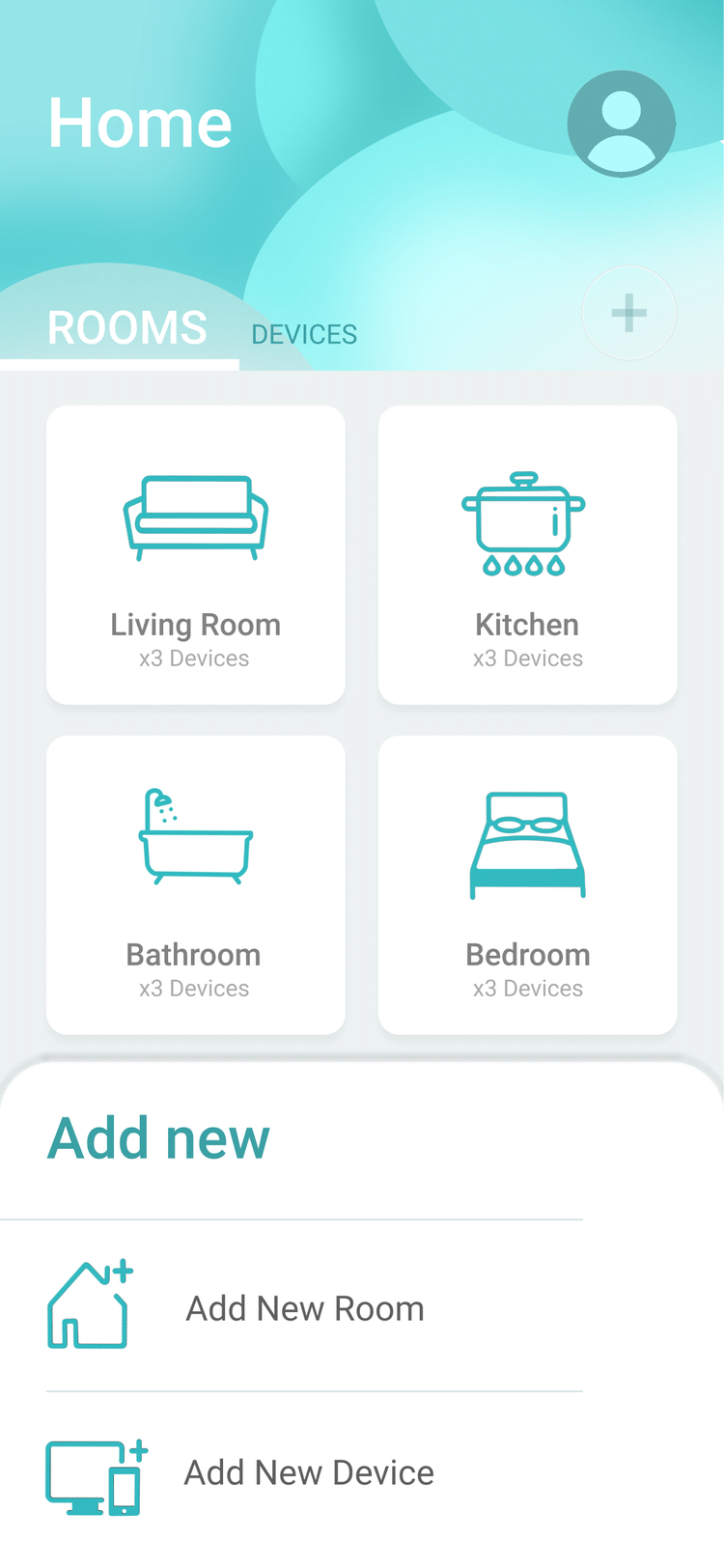
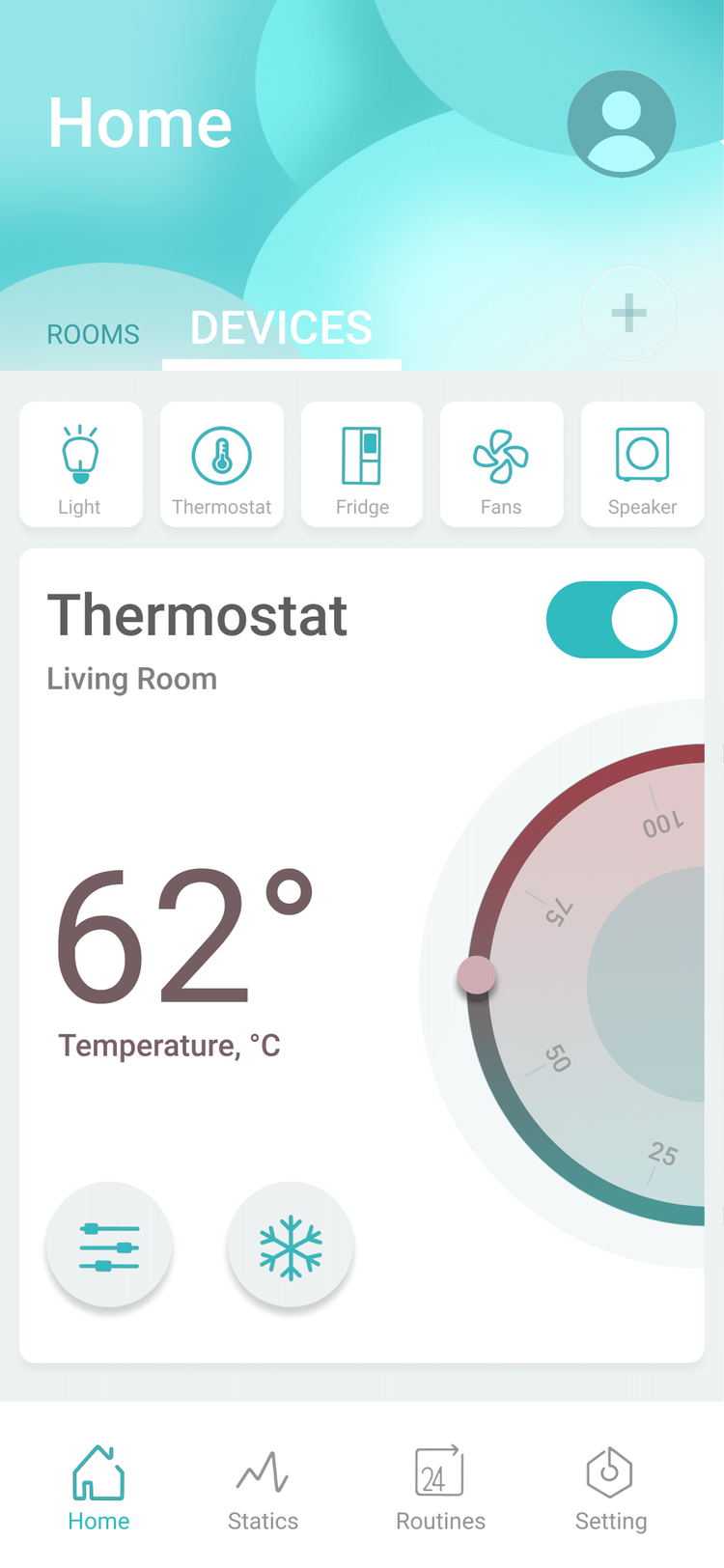
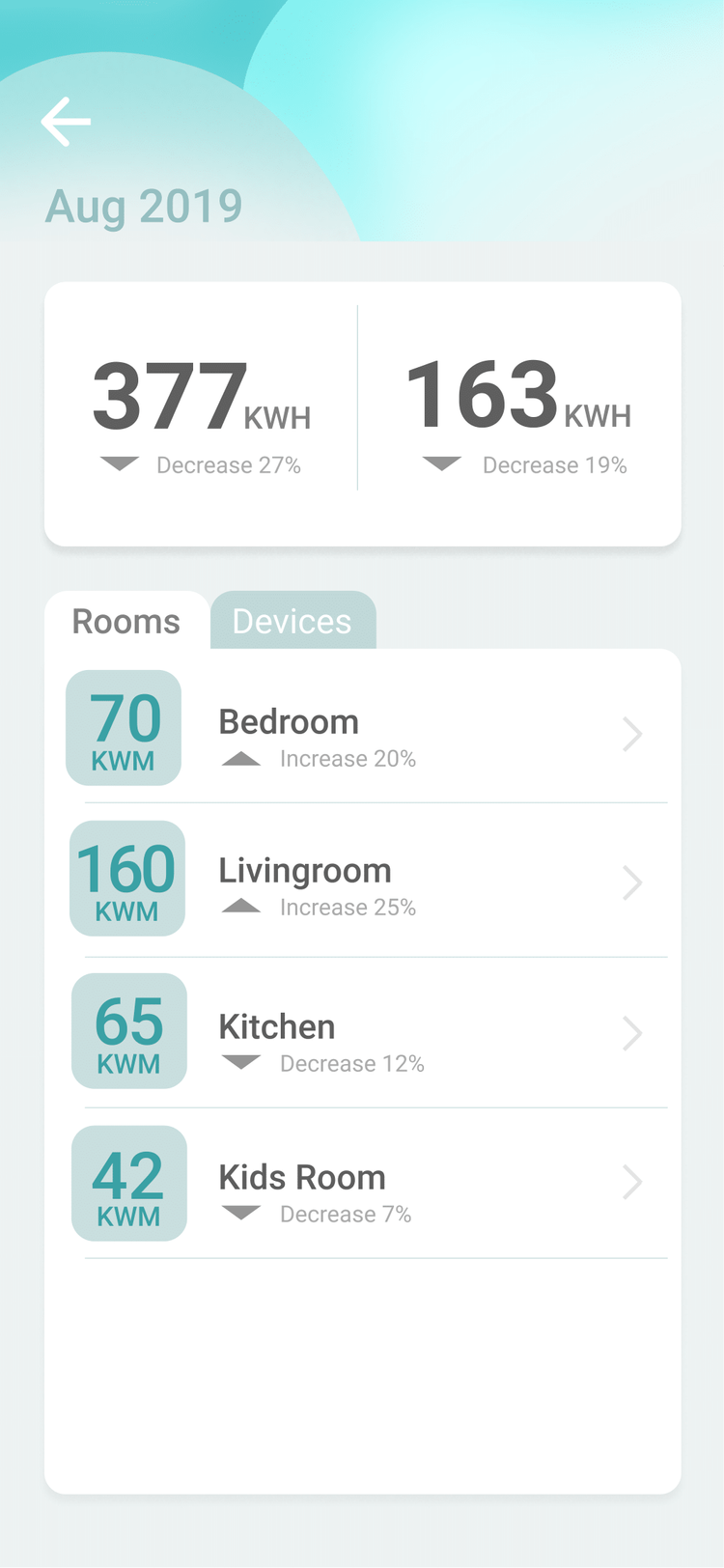
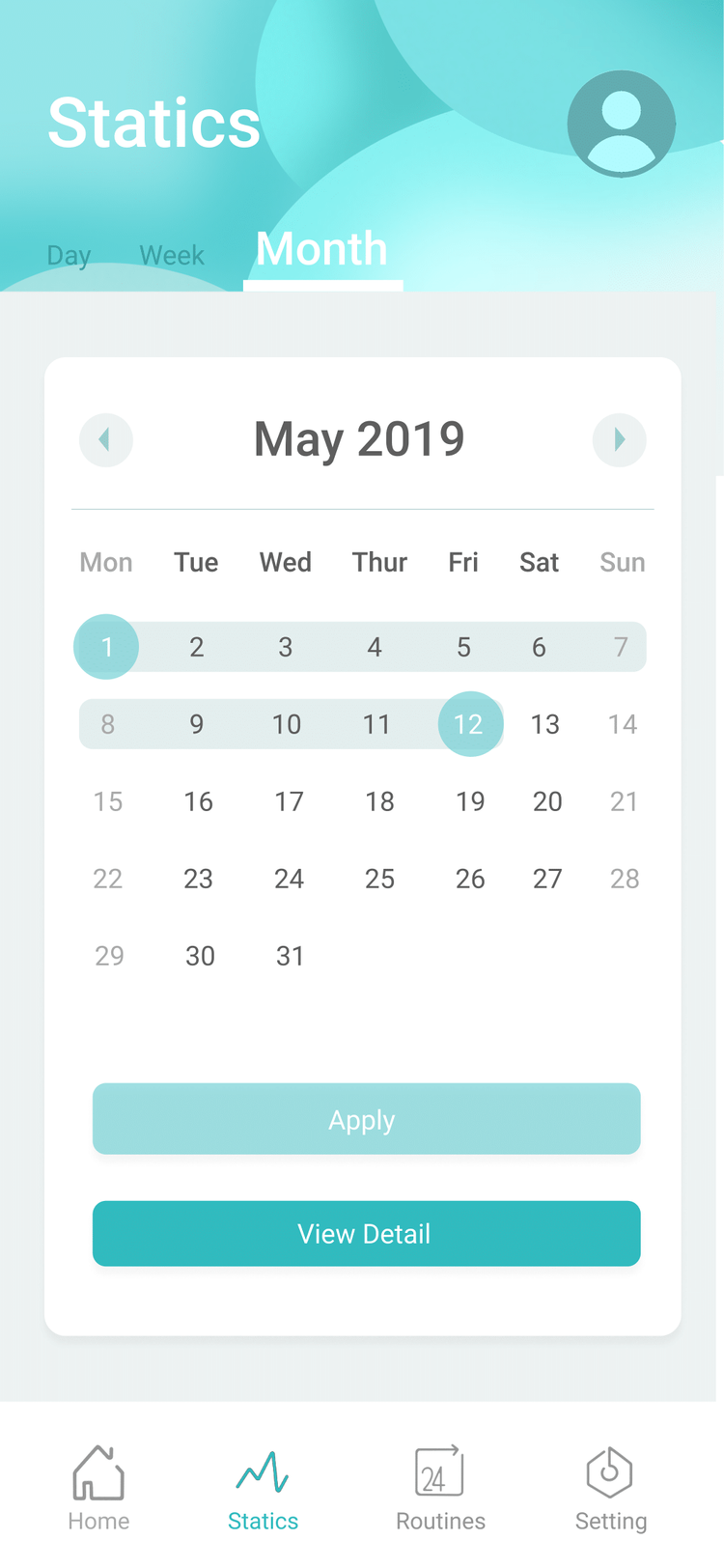
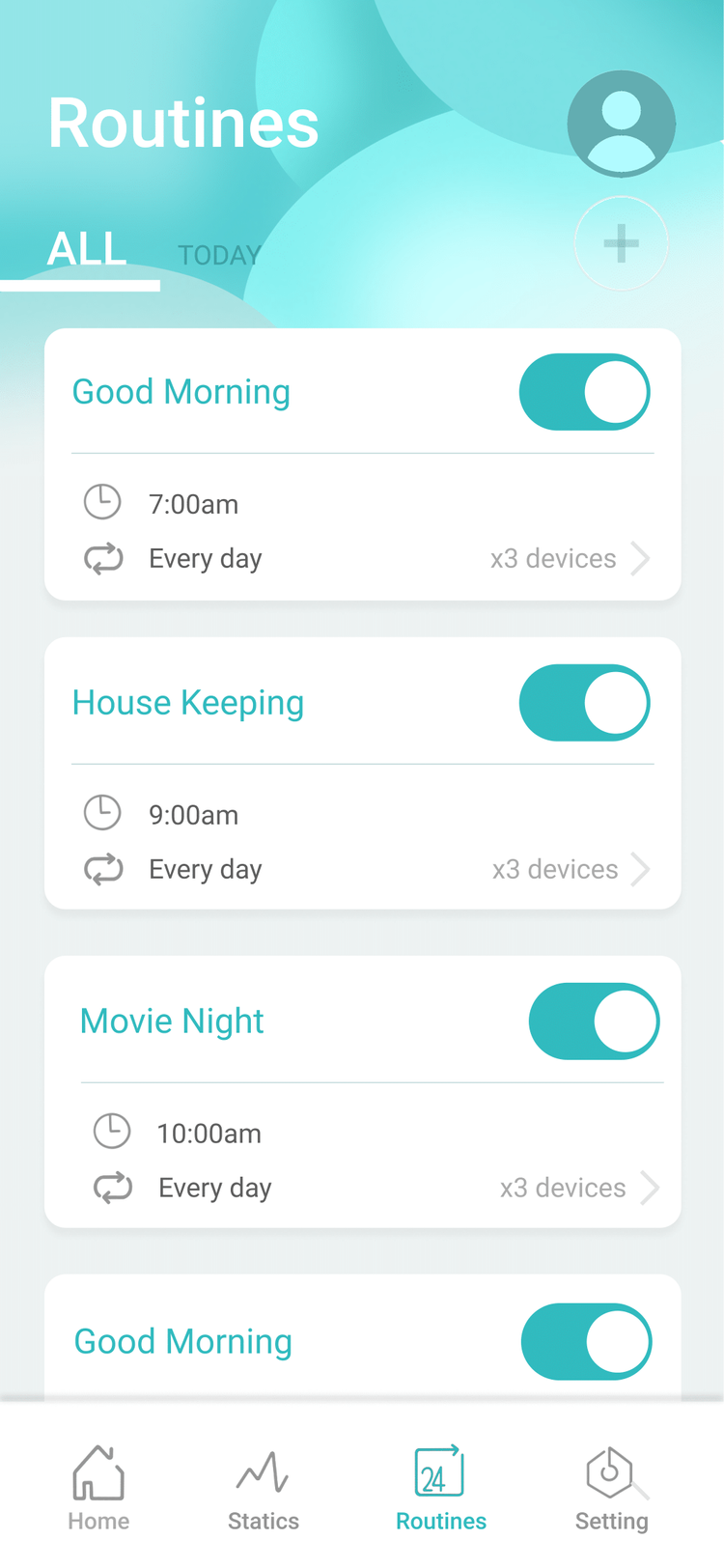
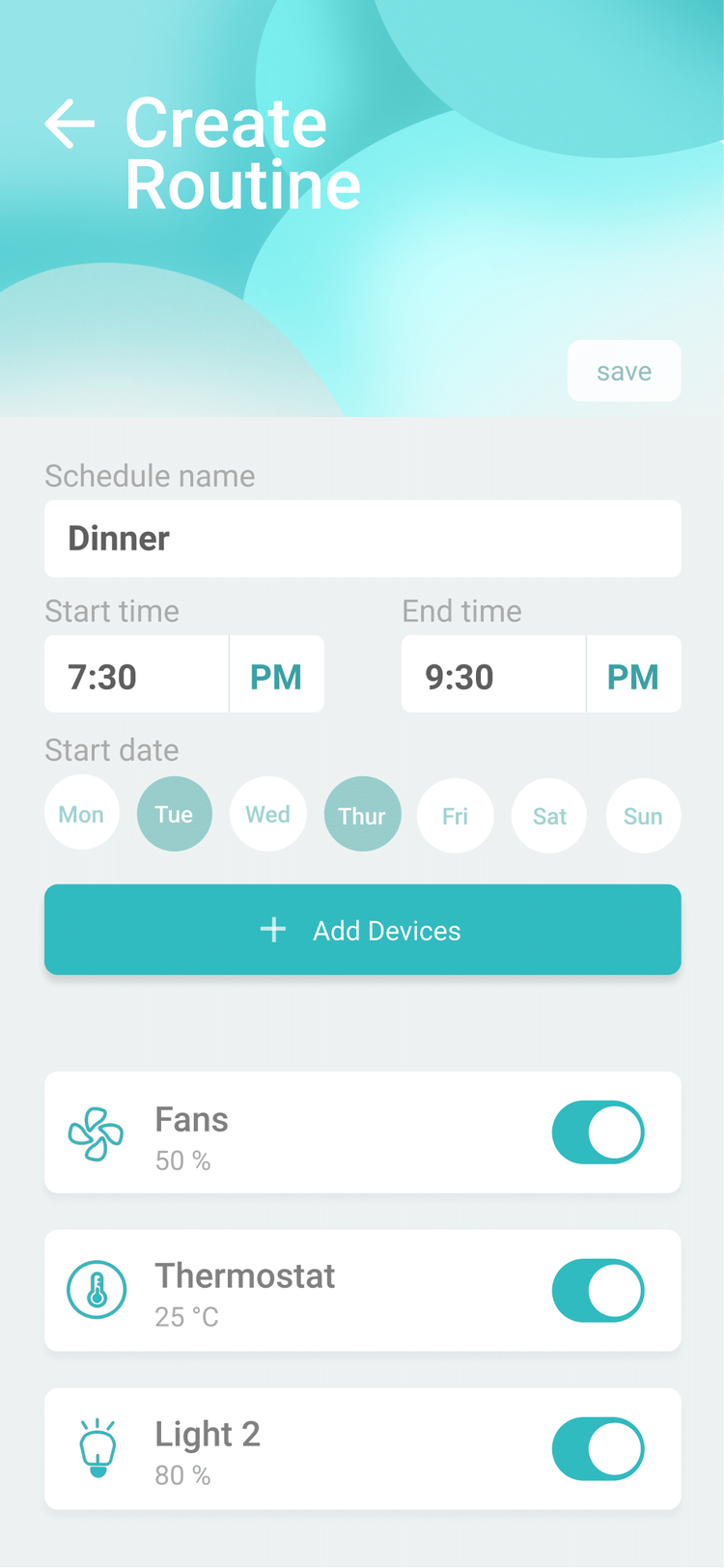
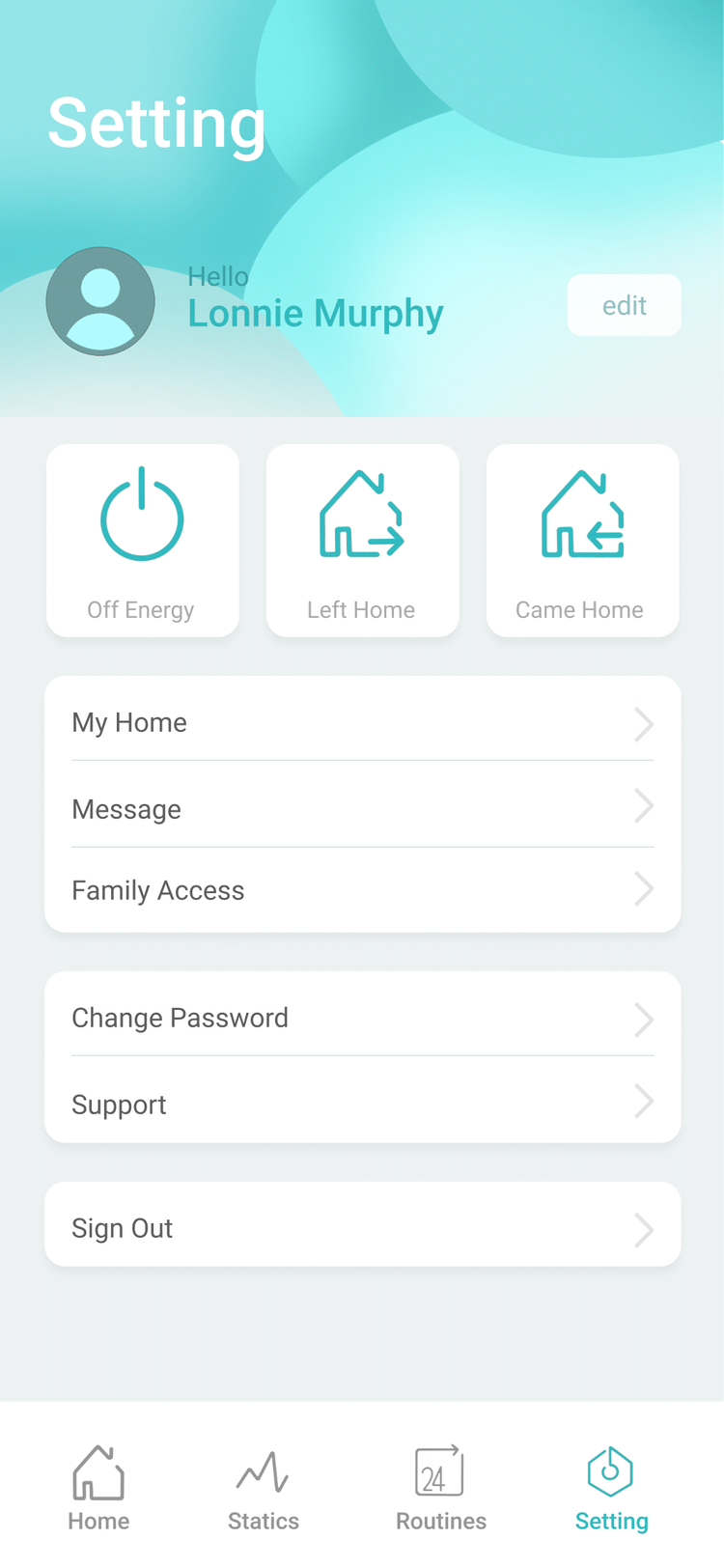
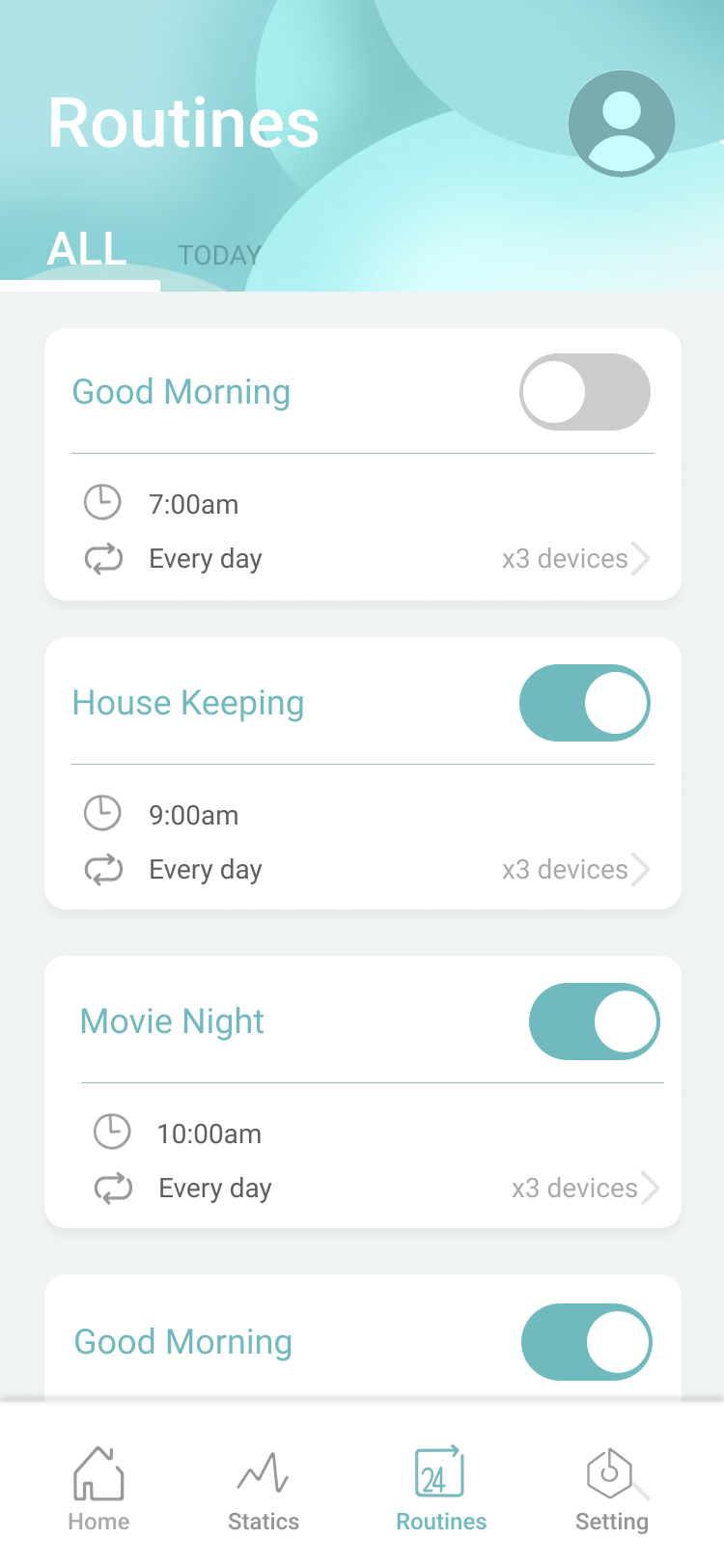
- The overall color is in line with Xiaomi's smart home positioning.
- In order to create a cozy feeling, all patterns and panels are curved, giving a soft feeling.
- The software style conforms to the trend of the recently updated software system style.
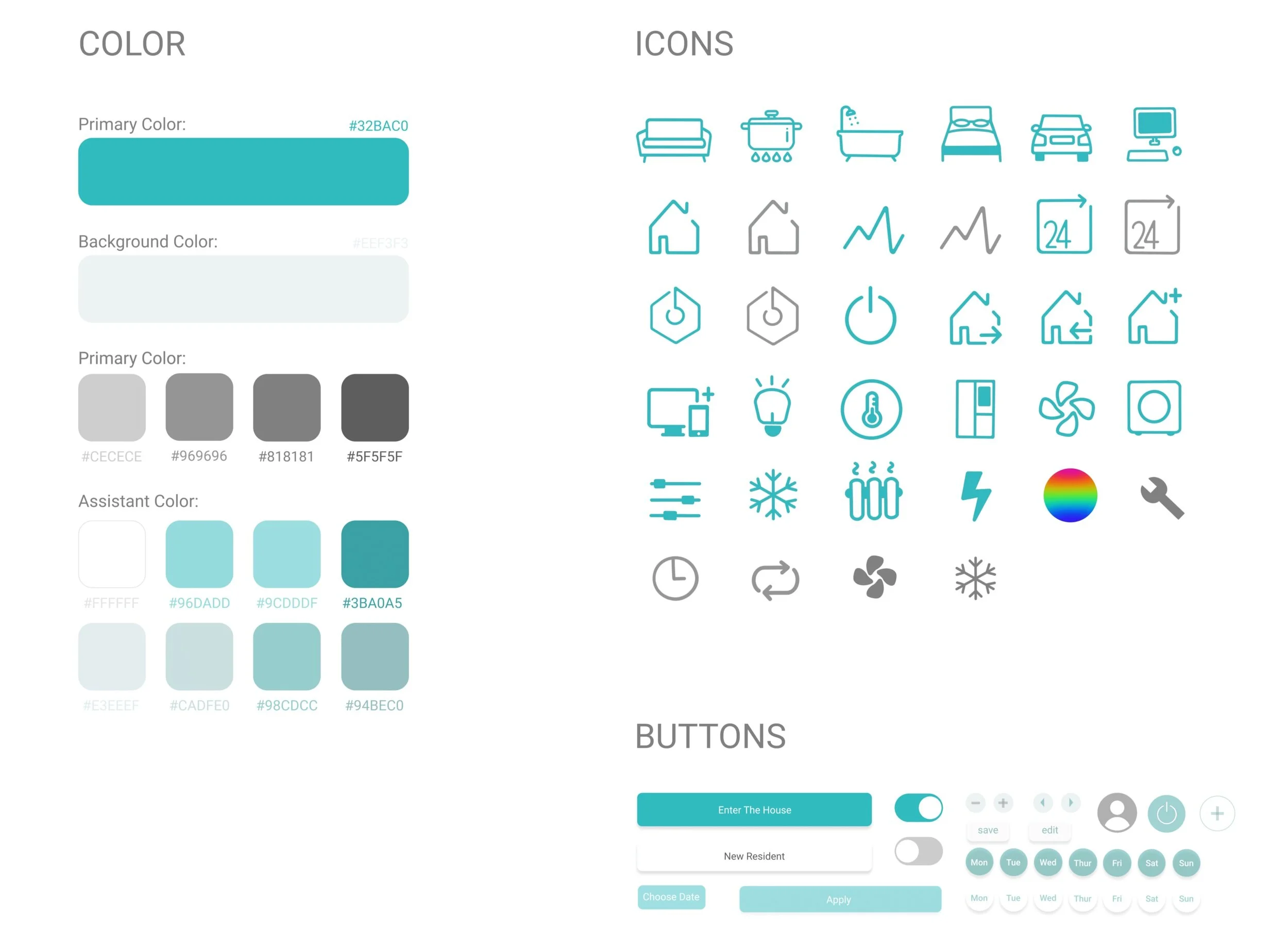
- All icons are composed of simple dots, lines, and planes.
- Added smooth page transition animation.
- The color of the interface changes slightly according to the characteristics of the product.
- The color matching is not complicated, and ambient colors are used.
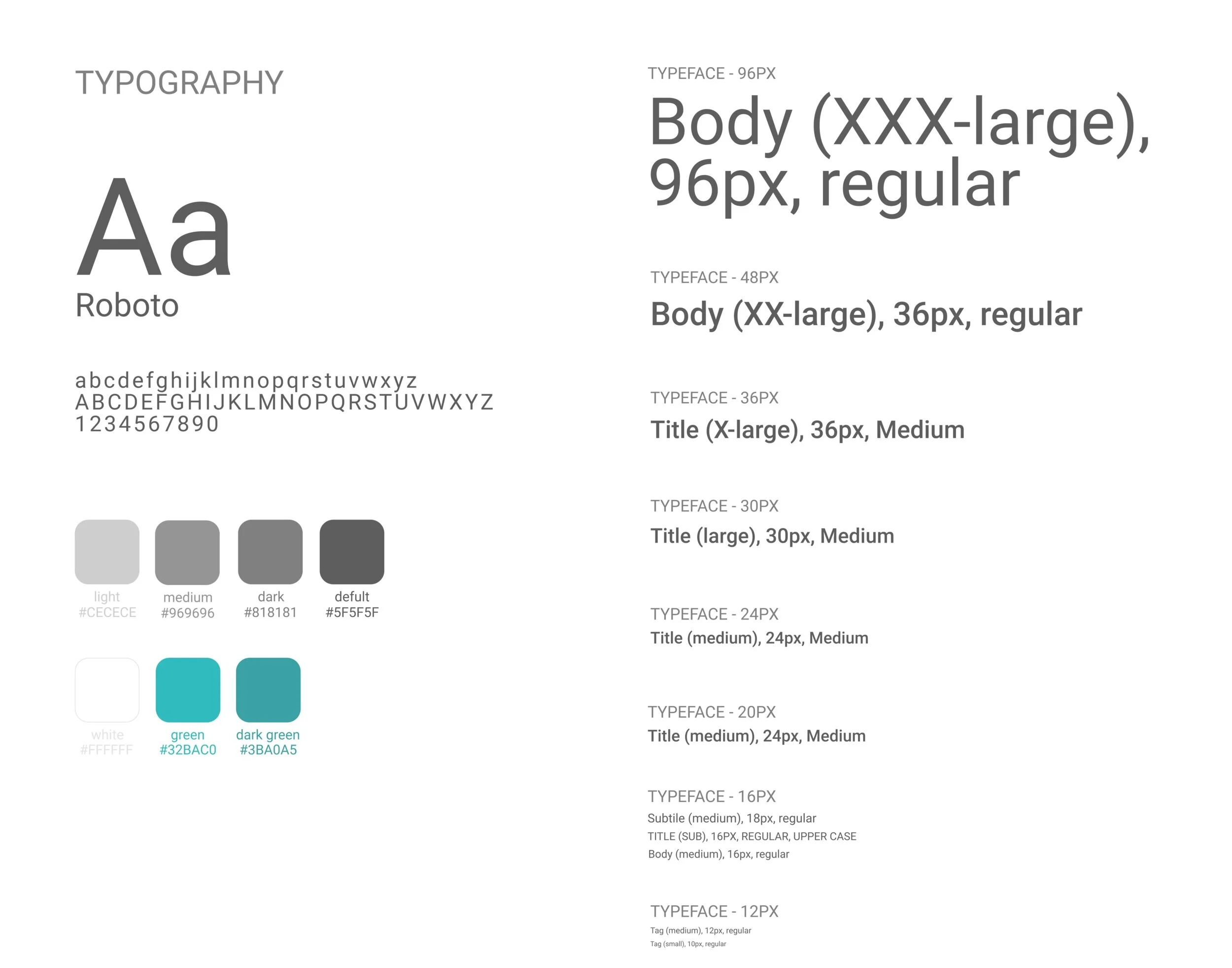
- Fonts and navigation bar are simple, and the font and color can be clearly distinguished from the background color.
Branding Design
Motion Design